
If you have an Ipad
It is possible to take digital in-class exams on an iPad. There are slightly different preparations before and a slight difference during the exam, and if you have a PC or Mac, we recommend using those instead.
Before the exam: download LockDown browser
- Go to the App Store and download the LockDown Browser app.
- You should not open the app once the download is complete, just close the App Store.
Before the exam: eduroam
Make sure you have a working connection to the university's wireless network (wifi): eduroam.
During the exam
- Log in to WISEflow and open your exam. Instructions are available at your seat.
- Once you have started your flow (exam), your iPad will display the following image. Click Open.
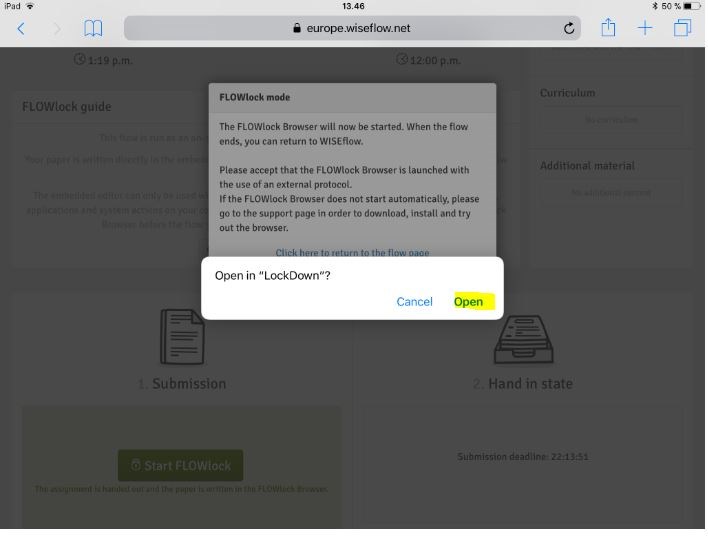
- In the next step, you confirm that the iPad can be locked using FLOWlock. This means that you can only be in the exam and not accidentally end up on any other page/app.
- When you have finished your exam, you will receive help submitting it from the exam invigilator.
- Then press the home button to open your iPad again.

During the exam: internet connection
If a student writing on a computer loses internet connection, they can save a local copy on the computer as a back-up. This does not work on the iPad. So if you get an indication on your screen that there is no internet connection, raise your hand and we will come and help you in one of the following ways:
- We will temporarily exit your exam and see if we can regain internet connection. If that works, we will re-enter the exam and you can continue writing.
- If that doesn't work, or just feels safer for you, we'll provide a loaner computer that you can continue writing your exam on. Everything is saved from where you were before you lost your internet connection.